![White full logo.png]](https://help.virto.solar/hs-fs/hubfs/White%20full%20logo.png?height=40&name=White%20full%20logo.png)
Devices can be placed before or after creating your inverter configuration. You can place transformers, LV cabinets, inverters, and BESS units.
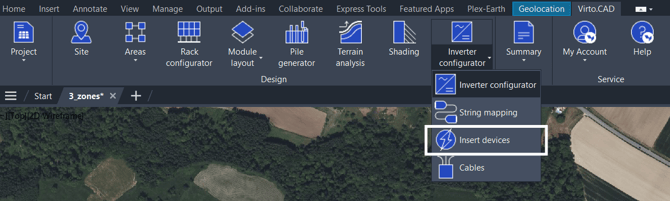
Click on the Inverter Configuration dropdown and select Insert Devices. A new window will open up.
Before Inverter Configuration
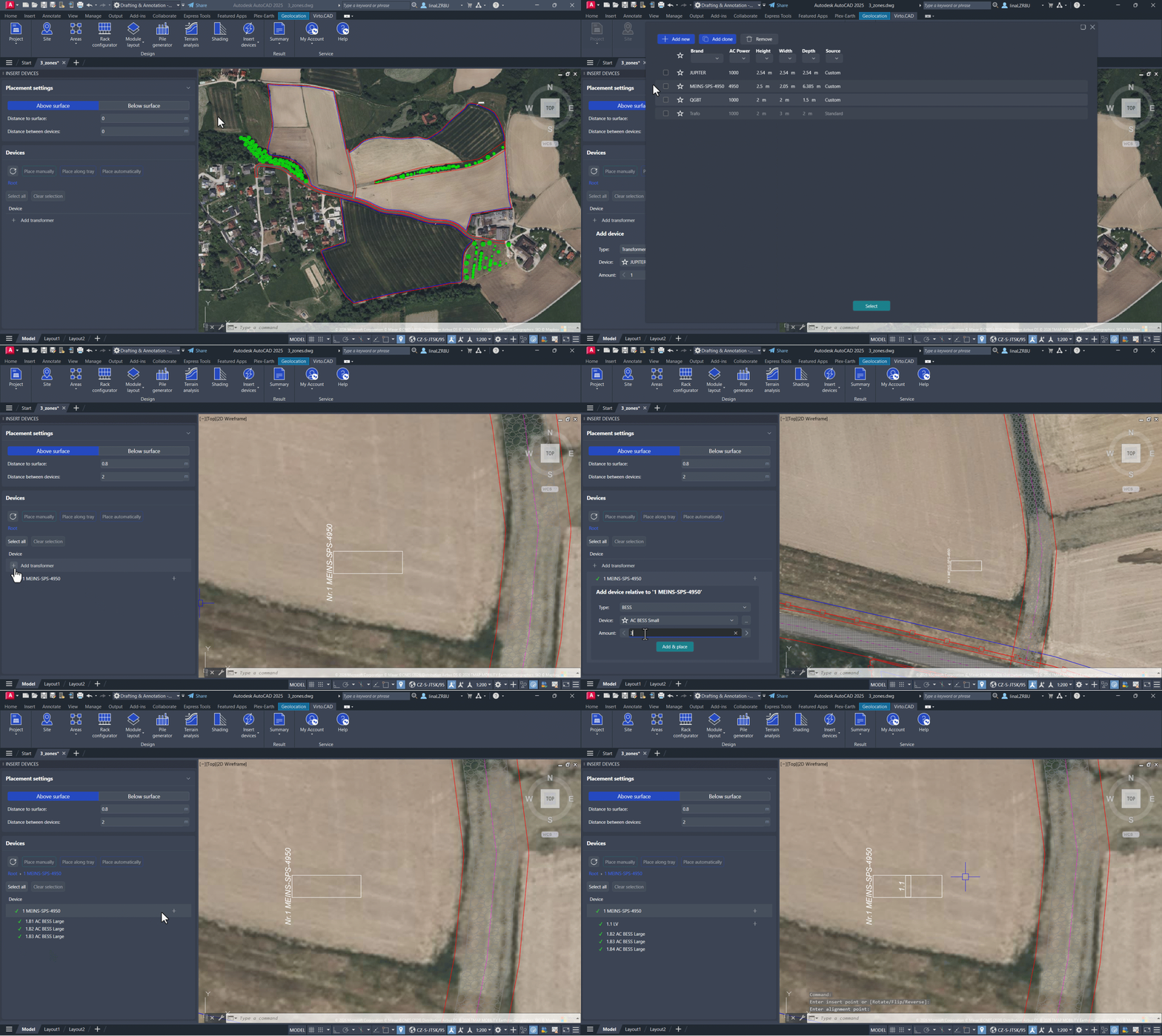
If you have not yet defined your inverter configuration but still want to place devices on your drawing, you can do so.
First, define at the top of the window in the Placement Settings section whether the device will be placed above or below the surface. Then set the Distance to Surface accordingly. If you are placing more than one device at a time, you will also need to specify the Distance Between Devices.
Next, in the Devices section, you can add a transformer by clicking the plus sign on the right. Select the transformer from your database using the three dots on the right, then enter the number of transformers you want to place at once.
After placing at least one transformer, a new plus sign will appear on the right. This will allow you to place LV cabinets or BESS units. After placing LV cabinets, you can then use the same process to place inverters manually.
Keep in mind that each device you add will follow the Placement Settings defined at the top.
Once you select the device and click Add & Place, choose the desired location on your drawing with one click, then click again to set the device orientation.
After Inverter Configuration
If you have already created your inverter configuration and defined the devices included in your project, follow these steps.
First, define at the top of the window in the Placement Settings section whether the device will be placed above or below the surface. Then set the Distance to Surface accordingly. If you are placing more than one device at a time, you will also need to specify the Distance Between Devices.
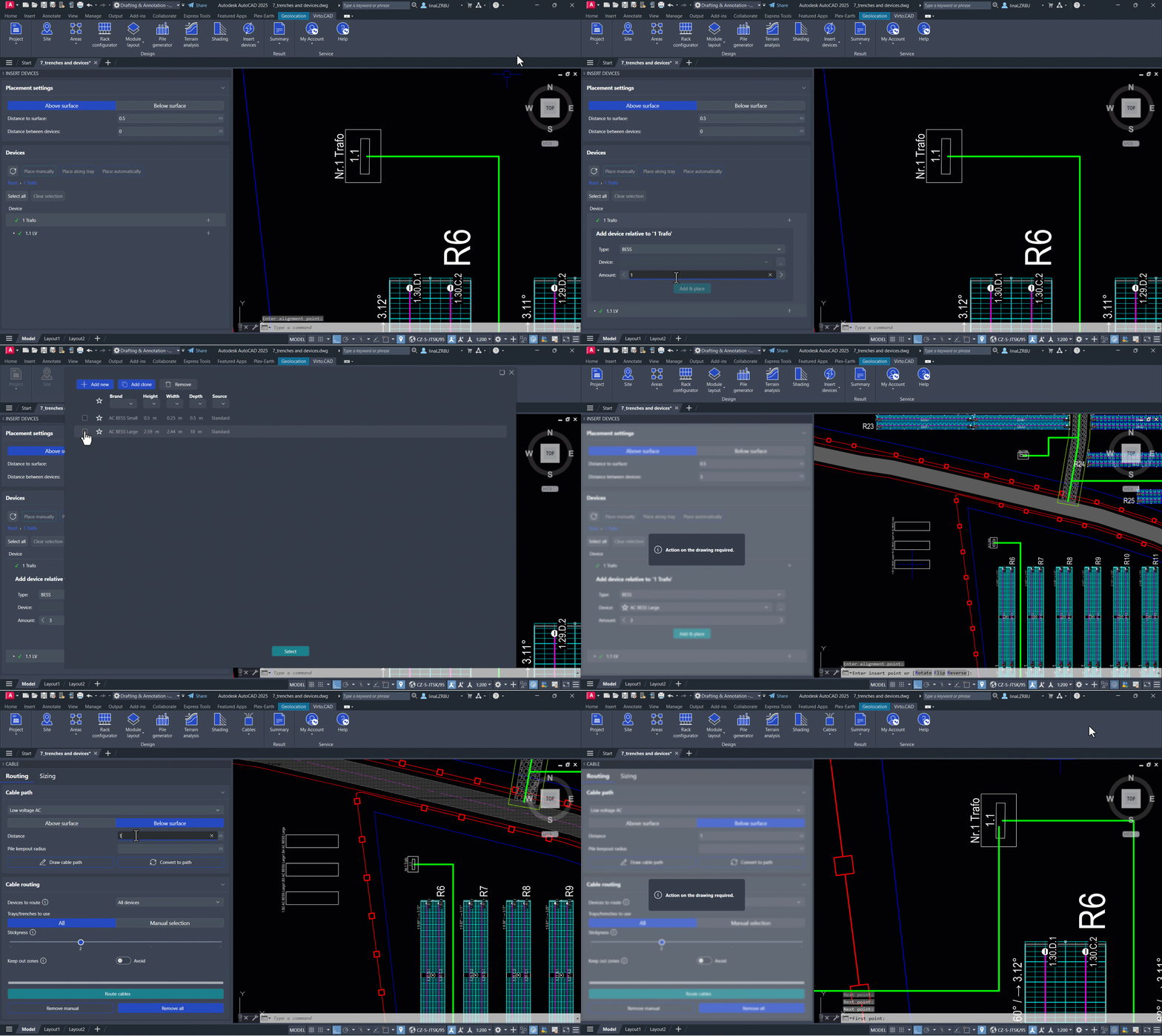
Next, in the Devices section, a tree of your configured devices will appear. You will first see any available transformers. Select the checkbox for the transformer you want to place, then click Place Manually. Choose the desired location on your drawing with one click, then click again to set the device orientation.
You can continue expanding the tree of sub-connections. Click the small arrow icon to the left of the transformer to open the next sublevel, which corresponds to the LV cabinet, then repeat the same process to place it.
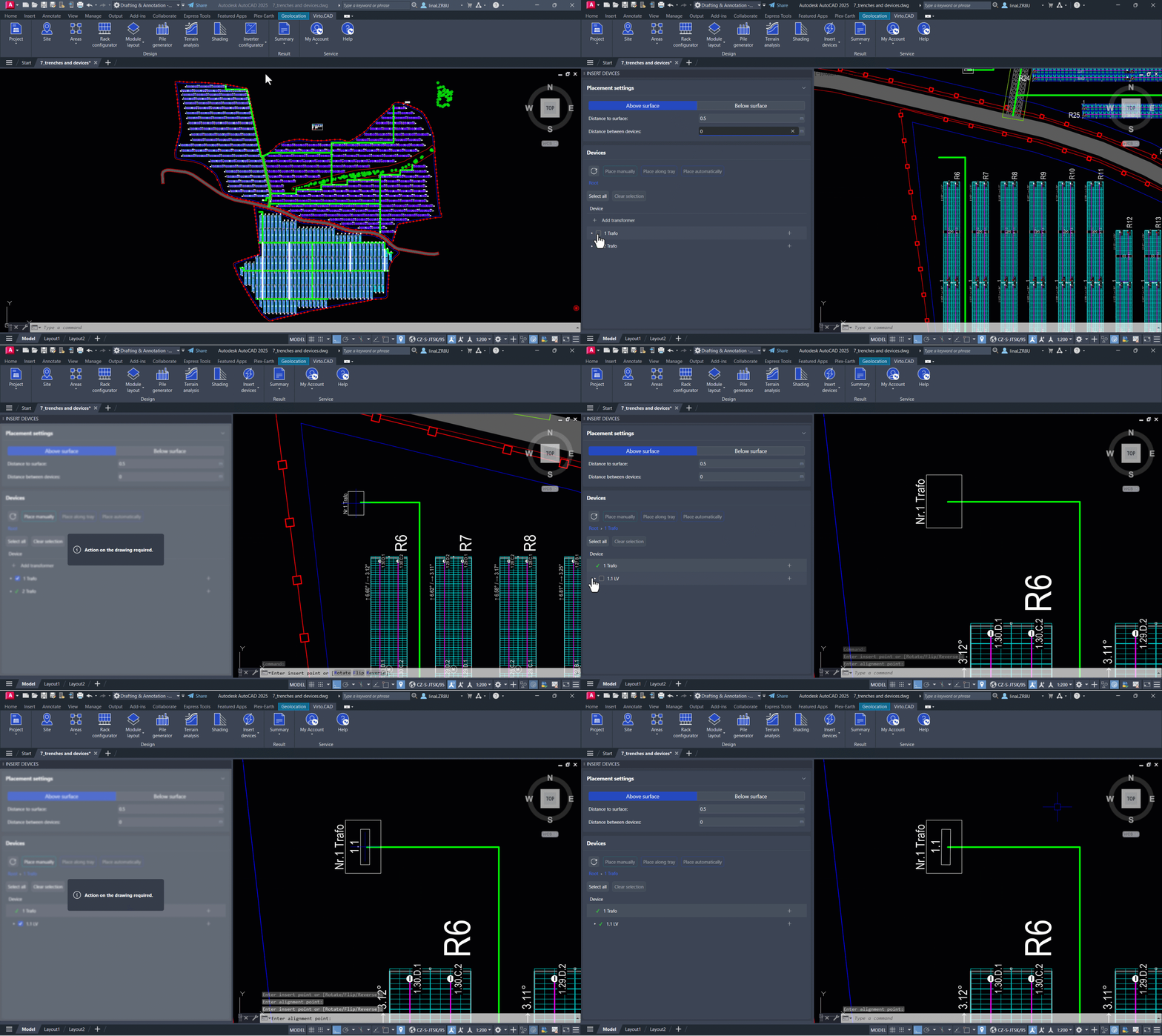
You can also add devices that are not included in your configured inverter configuration. For example, a plus sign appears on the right side of the transformer and LV cabinet, allowing you to add devices such as BESS units. Select the device type, click the three dots on the right to choose the correct device from your database, then enter the number of devices you want to add at once.
Automatic Inverter Placement
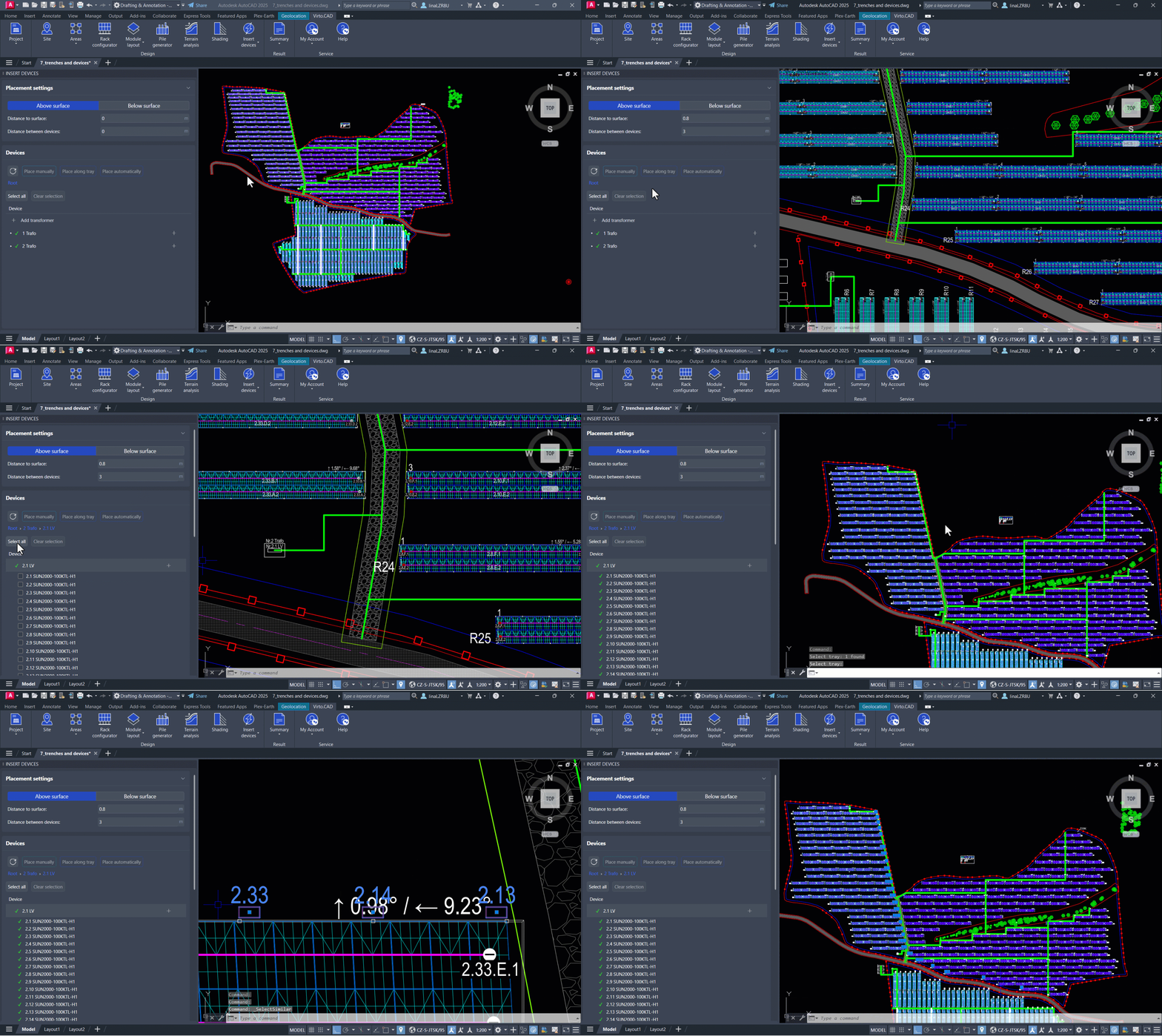
Inverters can be placed manually using the same process described earlier for transformers. However, they can also be placed automatically if you have already added DC and AC trenches.
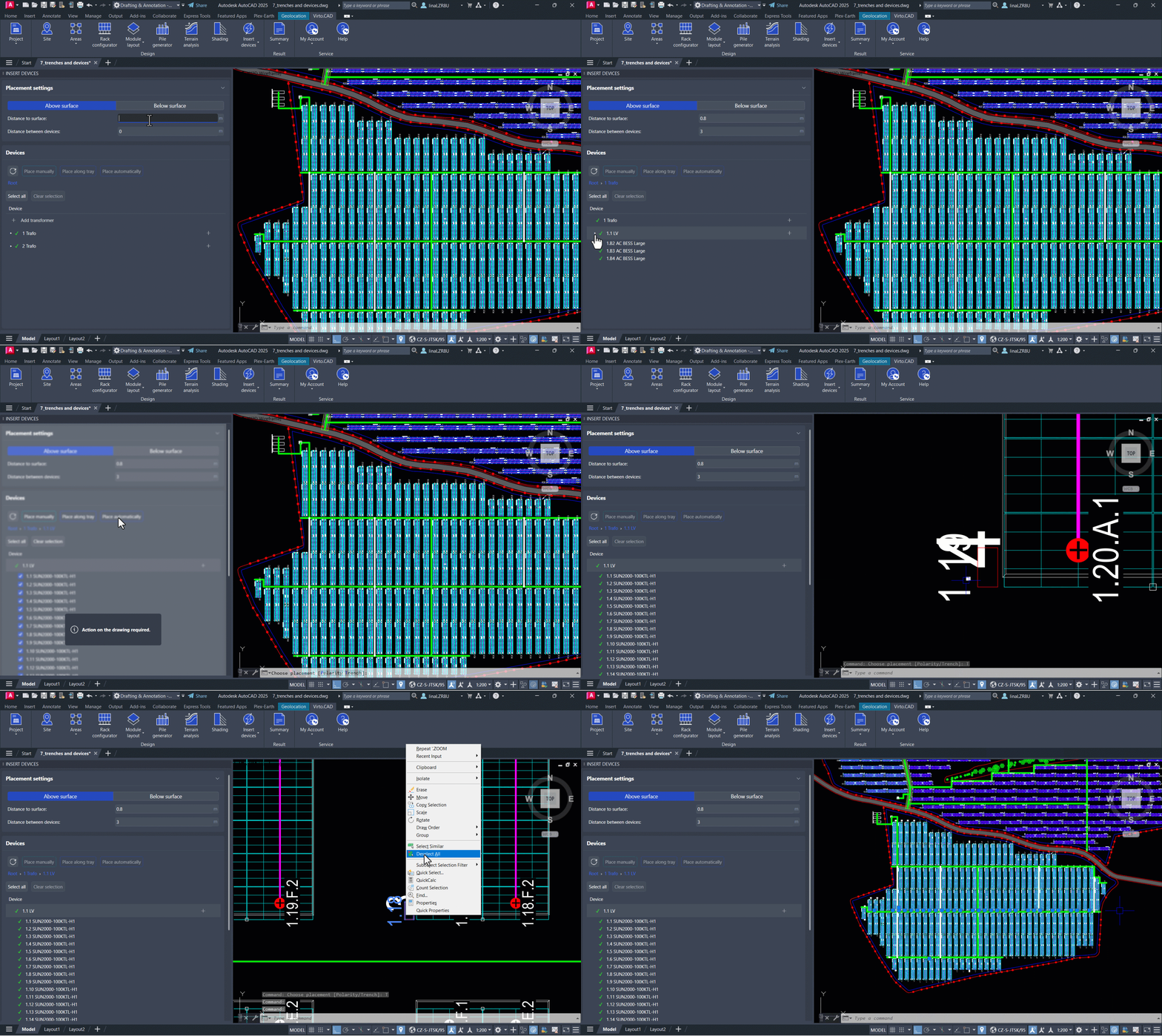
To do this, continue expanding the tree of sub-connections from the LV cabinet until you see the list of configured inverters. You can select individual inverters to place, or click Select all to choose all the inverters associated with that transformer if you have more than one.
Next, select Place Automatically. In the command bar, you will be able to choose whether the placement should be based on Polarity or on the trenches already placed.
If you choose Polarity, the system will not simply place the inverters as close as possible to the trench, as it would when using the Trench option. Instead, it will position them between the rows and columns of racks in a way that minimizes the total cable length required for the strings being connected.
Along Tray Placement
The Place Along Tray option works similarly to automatic placement. After selecting the inverters individually or choosing Select all, you will receive a prompt in the command bar asking you to choose which trays to consider for placement. At this point, go to your drawing and select one or more trays where you want the inverters to be placed, based on the position of your strings.