![White full logo.png]](https://help.virto.solar/hs-fs/hubfs/White%20full%20logo.png?height=40&name=White%20full%20logo.png)
Each license includes a single designated email user with login permissions for the Licenses Portal. Please contact support@virto.solar to confirm or update the authorized user associated with your company’s license.
Next, go to the following link, where you will be prompted with the login screen: https://license.virtocad.com/
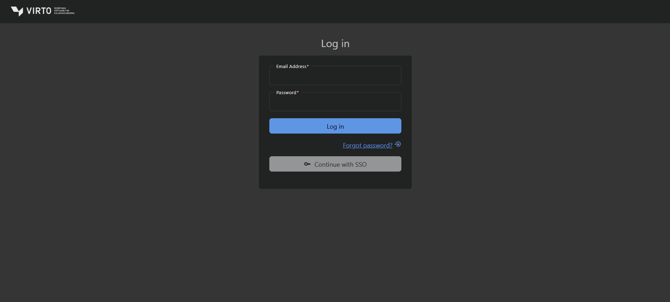
If this is your first time logging in, click on Forgot Password, enter your user email, and click on Send Reset Link.
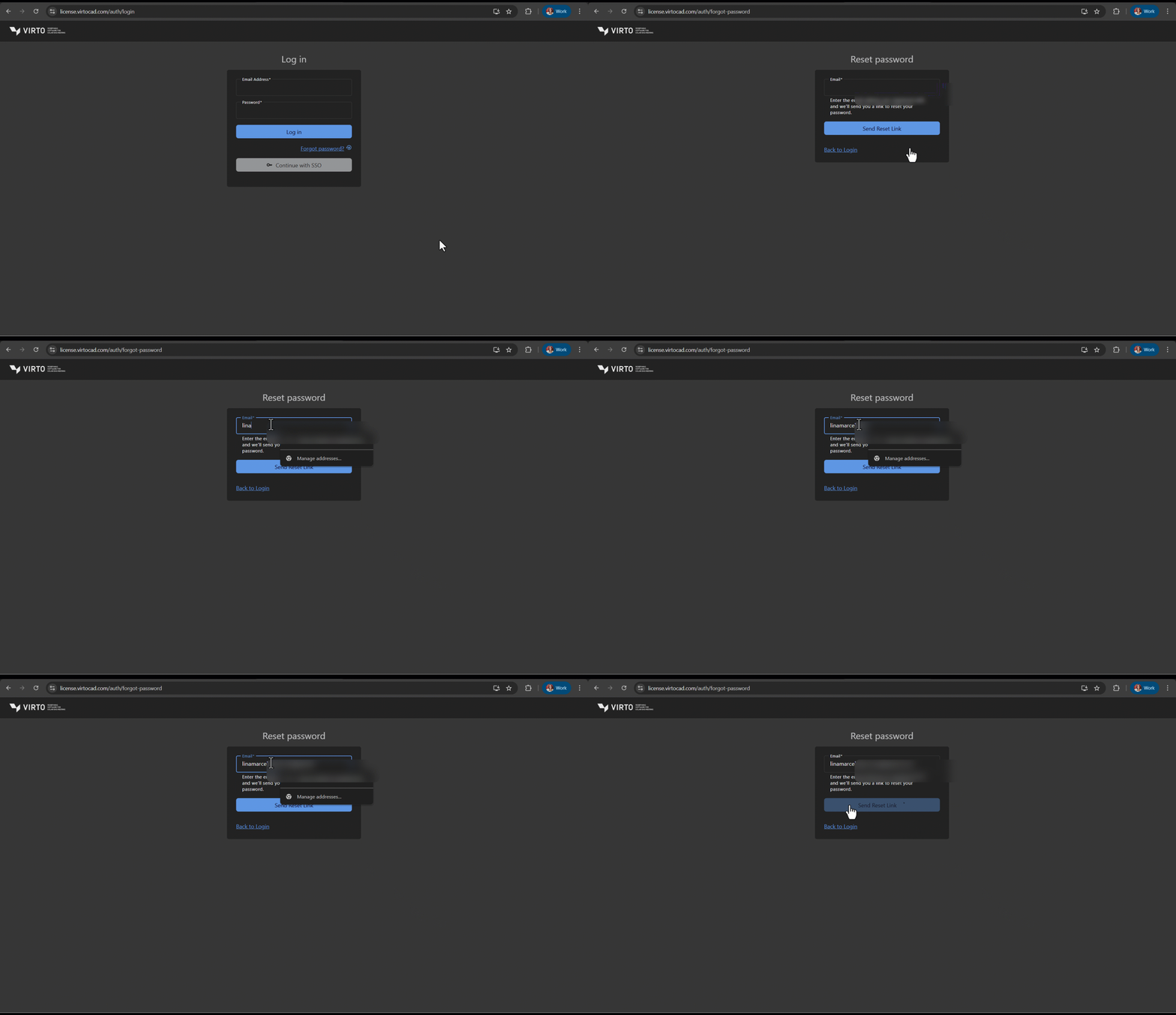
You will receive an email with a link to reset your password. Click the link, enter a new password, and you will be redirected to the login page, where you can sign in with your user email and the newly created password to access the Licenses Portal.
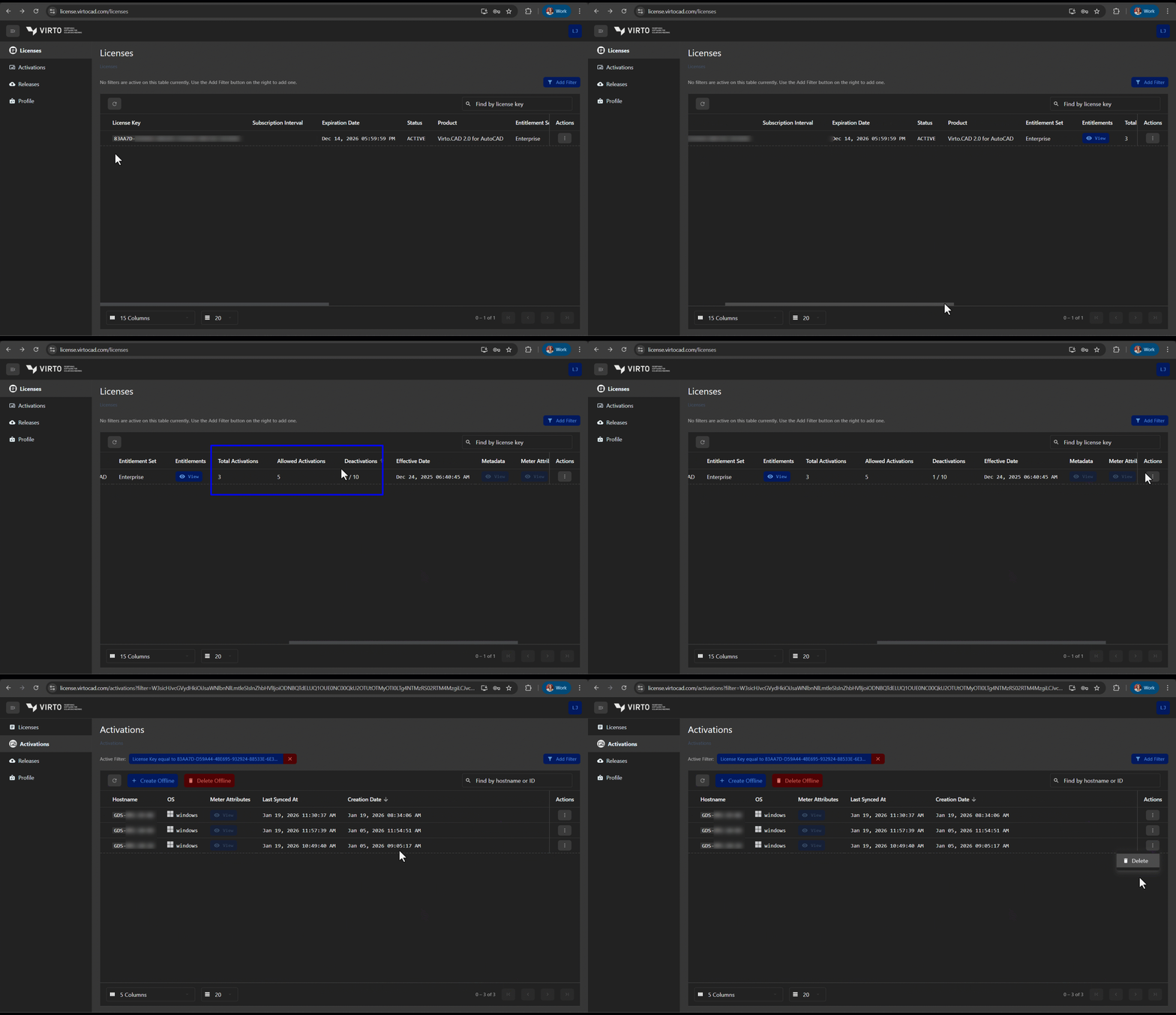
In the Licenses Portal, you can view all license keys assigned to your company, including each key’s expiration date, as well as the number of activations and deactivations available and used.
To review individual activations and manage them, click the three dots on the right under Actions, then select View Activations.
You will immediately see the computers currently using the license, their last sync date, and you will be able to delete any activation as long as you have deactivations available. To delete an activation, click the three dots to the right of the specific activation and select Delete.
Once you delete an activation, a seat is freed and a different computer can use the same license key from your portal.