![White full logo.png]](https://help.virto.solar/hs-fs/hubfs/White%20full%20logo.png?height=40&name=White%20full%20logo.png)
Use keyboard shortcuts to move faster through common Virto.MAX actions.
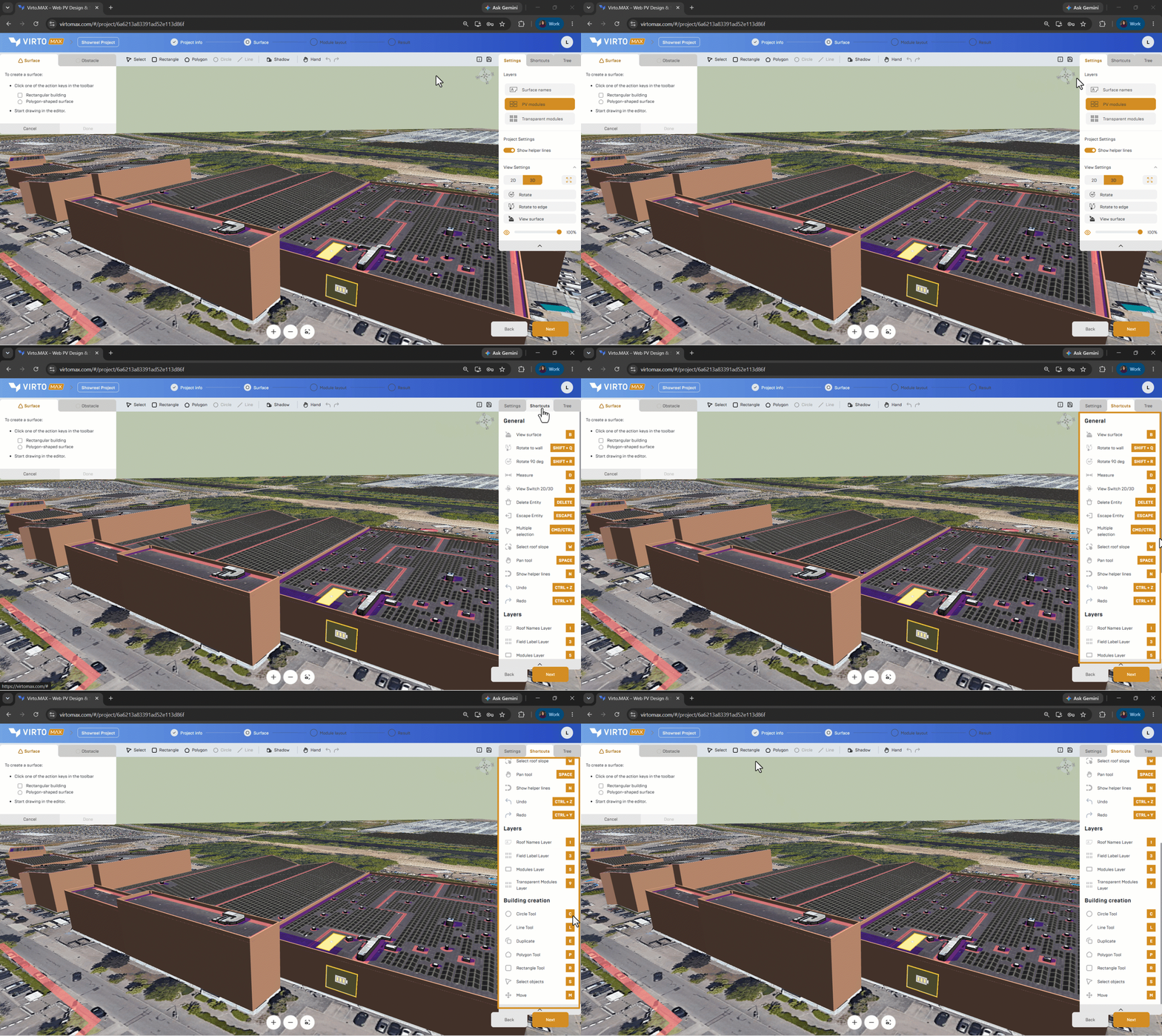
Open the Shortcuts panel in the side panel of the project interface. The in-app list is the source of truth because shortcuts can change as the interface evolves.
Update and expand this list!
Layer shortcuts that remain available are shown in the same in-app panel. Use the displayed list rather than relying on a printed copy when a shortcut does not behave as expected.
|
General |
Shortcut |
|---|---|
|
View surface |
B |
|
Rotate to wall |
SHIFT + Q |
|
Rotate 90 deg |
SHIFT + R |
|
Measure |
D |
|
View Switch 2D and 3D |
V |
|
Delete entity |
Delete |
|
Escape Entity |
Escape |
|
Multiple selection |
CMD/CTRL |
|
Select roof slope |
W |
|
Pan tool |
SPACE |
|
Show helper lines |
N |
|
Undo |
CTRL + Z |
|
Redo |
CTRL + Y |
|
Layers |
Shortcut |
|---|---|
|
Roof Names Layer |
1 |
|
Field Label Layer |
3 |
|
Modules Layer |
5 |
|
Transparent Modules Layer |
9 |
|
Building Creation |
Shortcut |
|---|---|
|
Circle Tool |
C |
|
Line Tool |
L |
|
Duplicate |
E |
|
Polygon Tool |
P |
|
Rectangle Tool |
R |
|
Select Objects |
S |
|
Move |
M |
Next step: Use layers.