![White full logo.png]](https://help.virto.solar/hs-fs/hubfs/White%20full%20logo.png?height=40&name=White%20full%20logo.png)
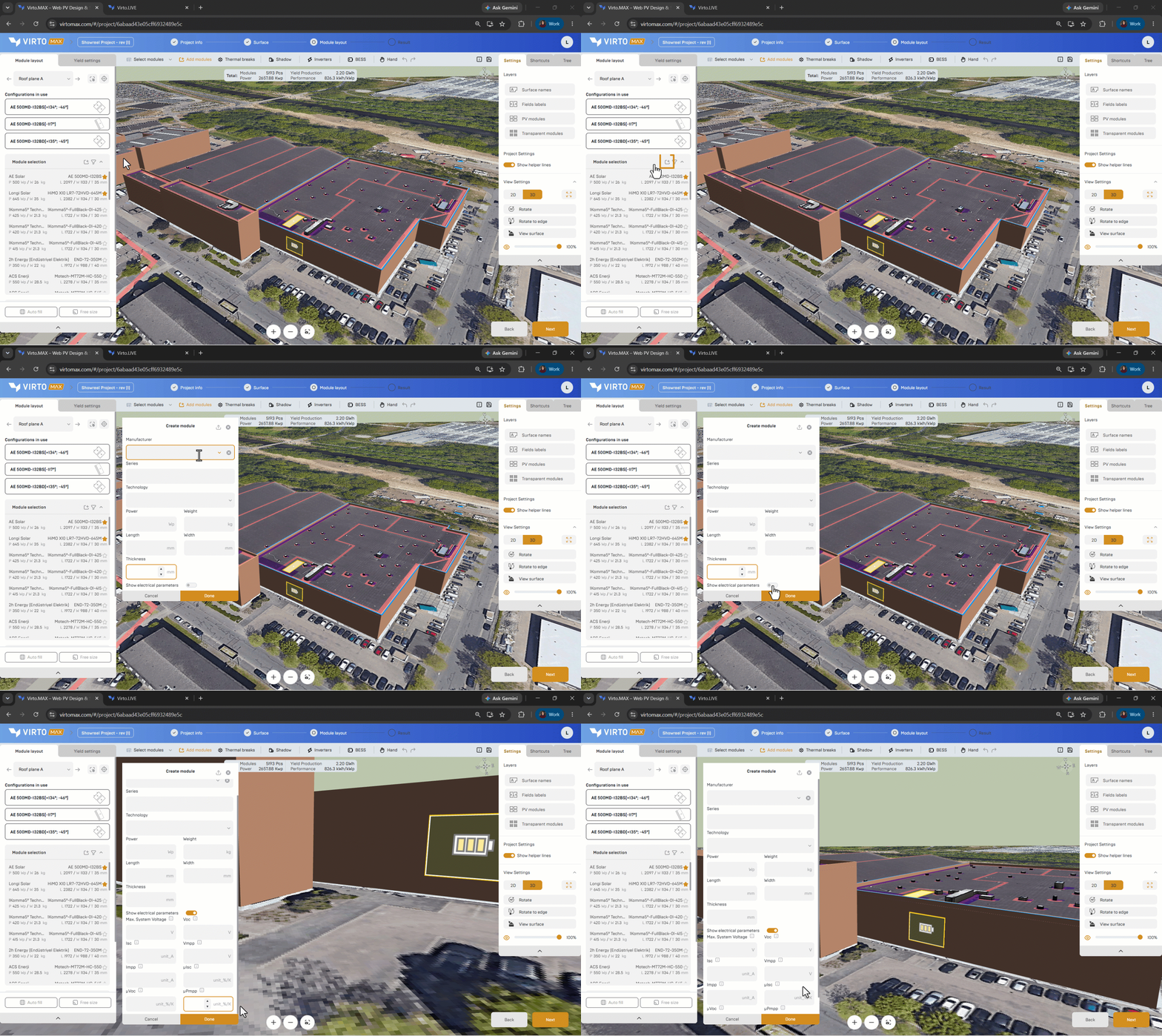
Add the panel manually
- Open Module Selection in the layout workflow or navigate to the module overview page.
- Select the add button in the layout workflow or click ‘create new module’ in the module overview page.
- Choose the manual-entry option.
- Enter the manufacturer, model name, module type, nominal power, width, height, and other required values.
- Review the units and save the panel.
- Select it for the current layout.
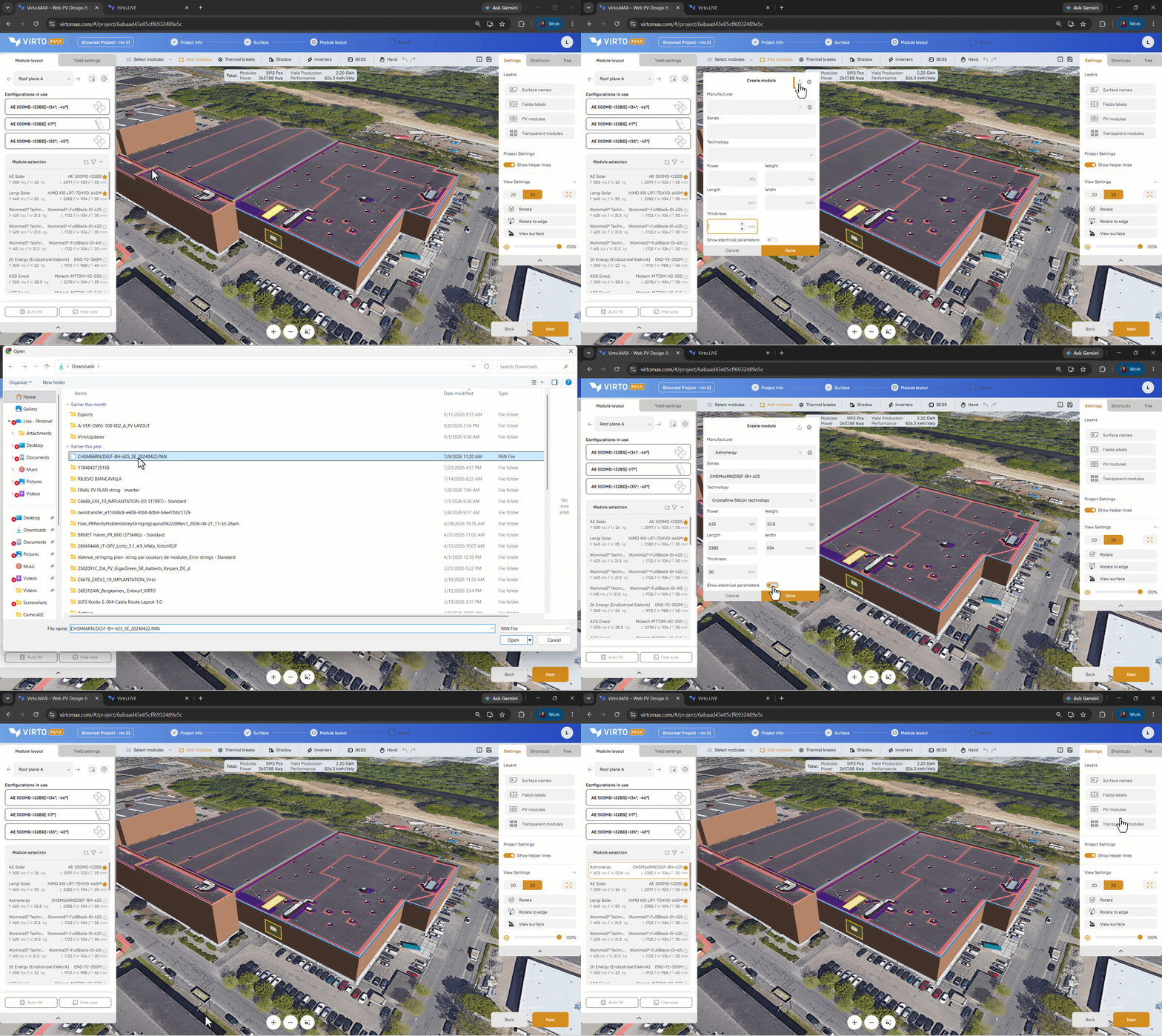
Import a PAN file
- Select the add button in Module Selection or navigate to the module overview page.
- Choose the .PAN import option or click ‘Upload .PAN file’ in the module overview page.
- Upload the file.
- Review the imported manufacturer, model, dimensions, power, and electrical data.
- Save the panel and select it for the project.
Next step: Place panels on a surface.