![White full logo.png]](https://help.virto.solar/hs-fs/hubfs/White%20full%20logo.png?height=40&name=White%20full%20logo.png)
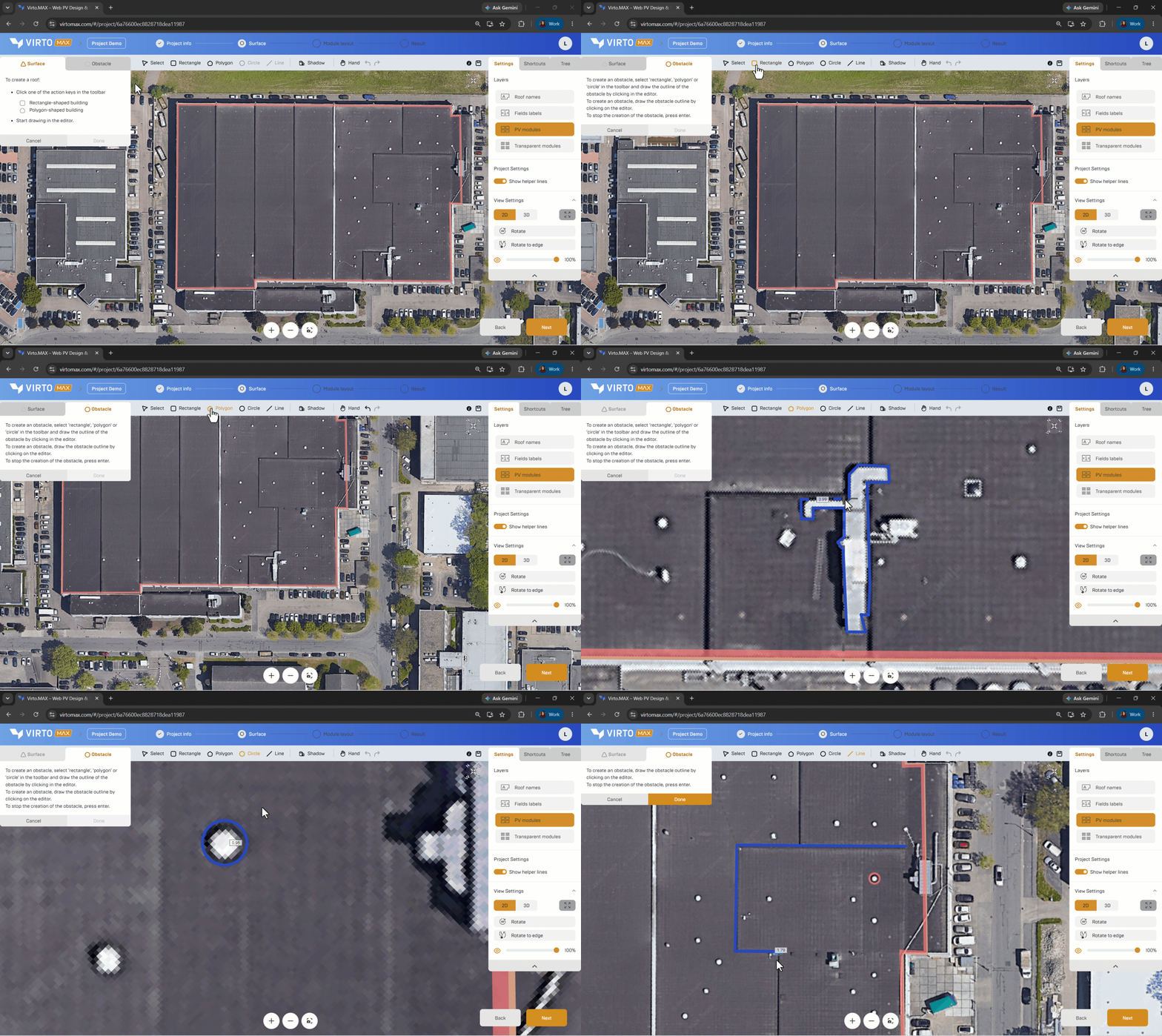
Choose an obstacle shape
- Rectangle: draw one side and drag to the required width.
- Circle: select the centre and drag to define the radius.
- Polygon: trace an irregular outline and close the shape.
- Line: draw a linear exclusion or obstruction, such as a ridge feature, wall, route, or narrow no-build zone.
Set obstacle properties
- Select the obstacle and enter its height or alignment where relevant.
- Set an offset or keep-out distance when modules must remain clear of the object.
- Use a descriptive name for important access or safety zones.
Detect similar obstacles automatically
Draw one obstacle and let the system detect similar objects, saving you from drawing each one individually. Adjust the matching accuracy from approximate to exact to suit the image quality and identify similar obstacles.
- Enable Create similar objects.
- Set the matching accuracy.
- Review the detected objects

Good to know: Automatic detection accelerates repetitive work but does not replace a visual check. Roof equipment, shadows, markings, and image artefacts can look similar in satellite imagery.
Next step: Place panels on a surface.